Checker Automations
Four handy workflows built into Checker that send branded reminders to your customers in the background. To them, it looks like you’ve sat down and written every message yourself. Checker does it for you.
Set up automations in my.checker.app →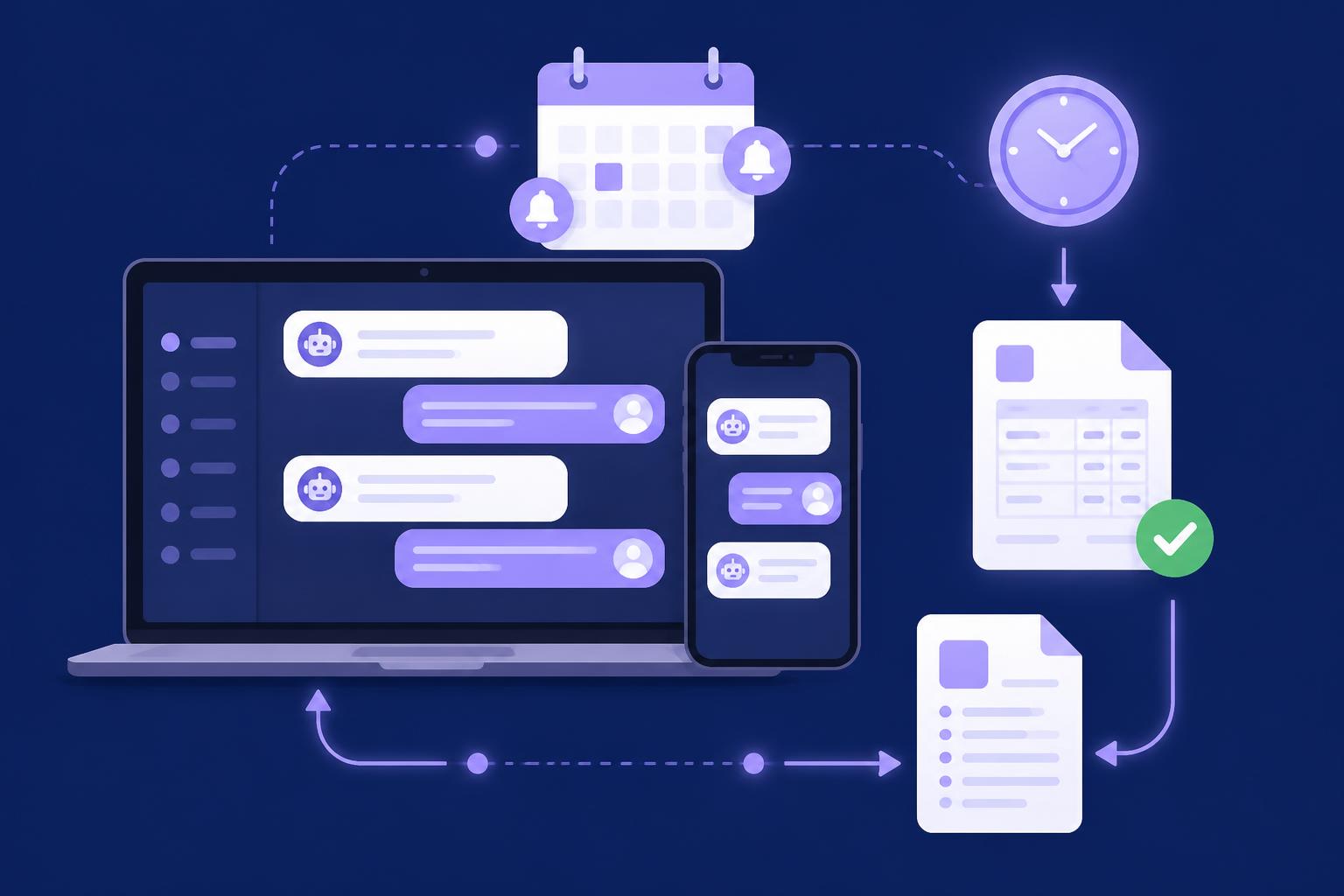
Checker Automations are four simple message workflows that fire off on their own, based on what’s happening with your jobs, quotes and invoices, and each customer’s customer record. They use your branding, your logo and a sensible bit of default wording that you can change to suit you. Any reply the customer sends goes straight to your own email inbox, and replies to a text come back to your mobile, so nothing slips through the cracks.
If you’re an OFTEC-registered oil engineer juggling boiler services, landlord certificates and follow-ups, automations take the paperwork off your plate without making your customers feel like they’re being spammed by a robot.
What’s inside
Feature 01
Customers forget. A short reminder before the job means they’ll be in, the boiler will be accessible, and you won’t waste a trip in the van.
Feature 02
Quotes go cold quickly. The Quote Chaser sends up to three branded follow-ups after you send a quote, each one a bit firmer than the last, and each with a one-click Accept button for the customer.
Feature 03
Cash flow shouldn’t rely on you remembering to chase. The Invoice Chaser kicks in the moment your payment terms run out, and works its way from polite to firm.
Feature 04
Repeat work is the easiest work to win. Checker looks at the due date on the file and sends one well-timed message before it expires, reminding the customer it is nearly due and asking if they would like to rebook.
Replies
Every automated message looks like it’s come from you. Your branding, your logo, your phone number. When a customer hits reply to an email, it lands straight in your own email inbox just like any other email. If the message went out by SMS, their reply comes back as a text to the mobile number you have in the app.
Every message Checker sends on your behalf is also saved in the Email tab, so you’ve got a full record of what went out and when. Replies are not held in Checker, they go to you.
Get started
These are the more advanced bits, so we’d suggest setting them up on a laptop or desktop rather than your phone.
Step by step
This is the full walkthrough. Follow it once, in order, and your reminders will go out to the right person, with the right wording, at the right time, for good.
Do this on a laptop or desktop rather than your phone. It takes about ten minutes. Sign in at my.checker.app first.
The three tabs, in this order
In short: who gets what, then what it says, then when it lands.
Step 1
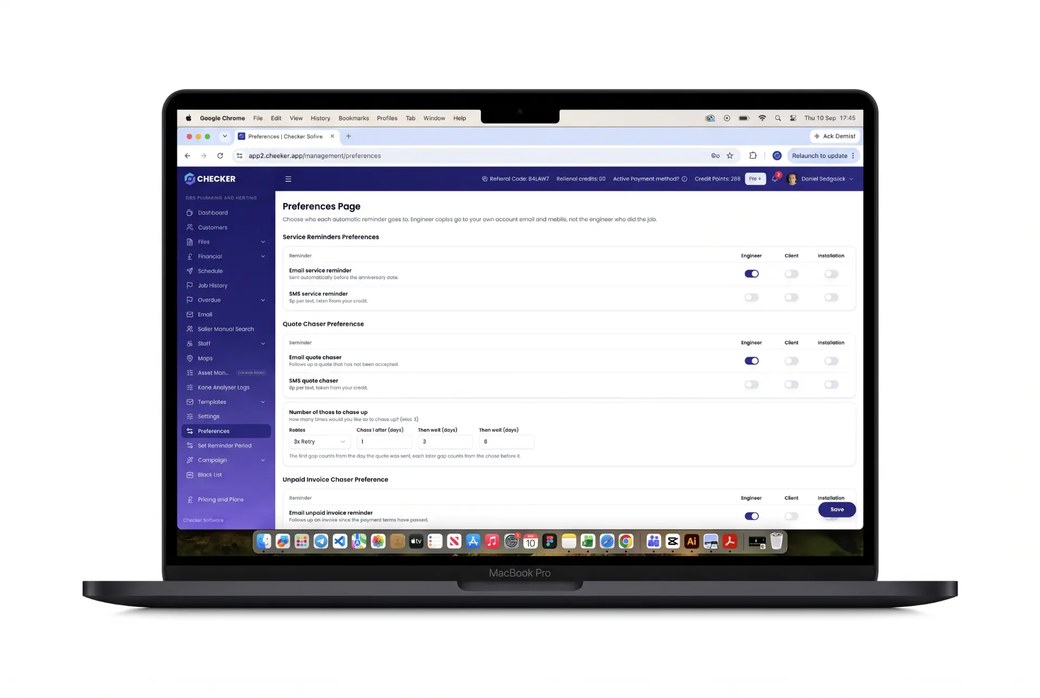
Go to Preferences. This page lists every automatic message Checker can send. Against each one you decide three things:
Then pick how each one is sent, by email, by SMS, or both. Most are off as standard, which is deliberate. Nothing goes out to your customers until you say so. Switch on only the ones you actually want, and turn off the rest.
Work down the page one row at a time and hit save. If you are not sure about a row, leave it off. You can come back and switch it on later.
Step 2
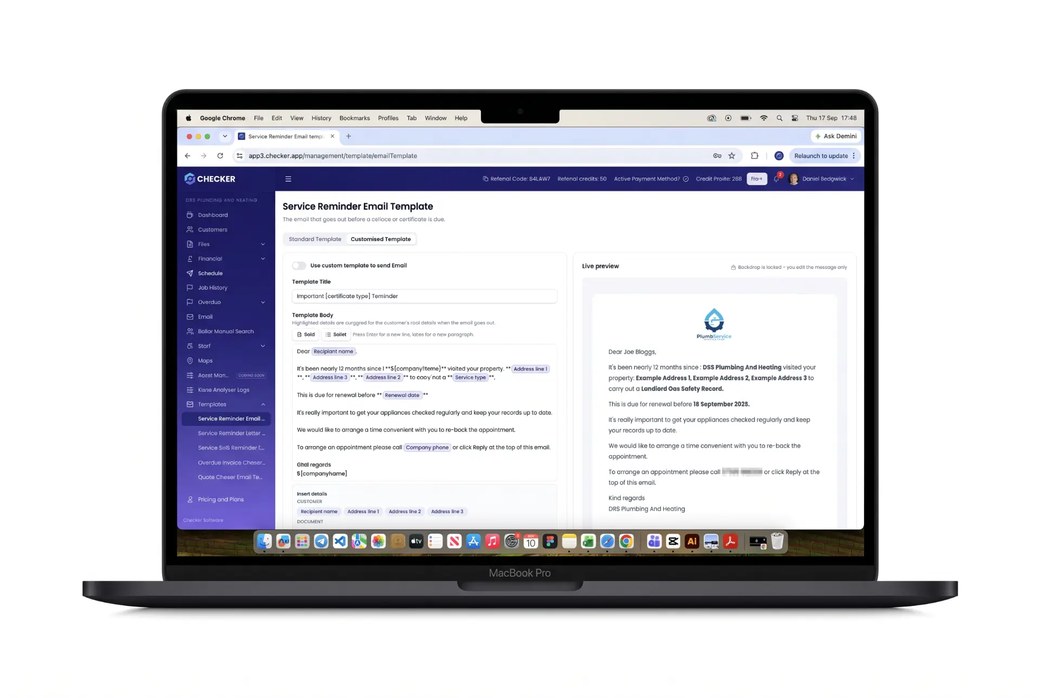
Go to Templates. Every reminder comes with default wording written for UK trades, so if you change nothing at all it will still go out and still read well.
If you want it to sound like you, open the template for each reminder you turned on in step 1 and edit the subject line and the body. A few pointers:
Step 3
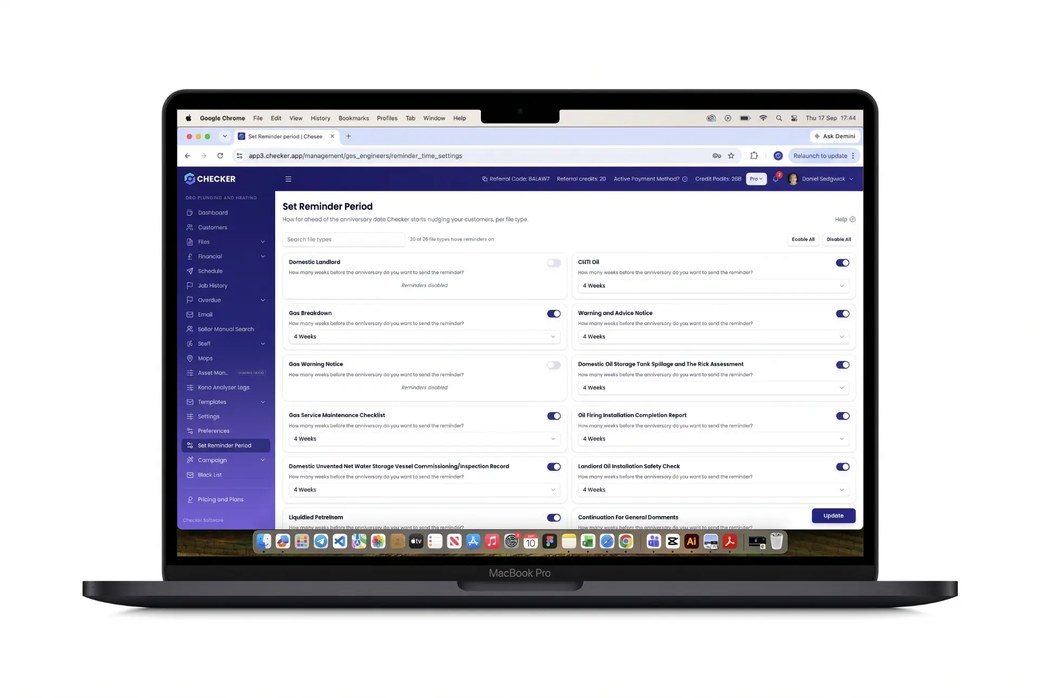
Go to Set Reminder Period. The default is 4 weeks before the file is due. You can set anything from 1 week to 12 weeks.
Save it and you are done. From that point on, every file you complete gets its reminder queued automatically.
Step 4
Open your overdue and due list. Against each file you can see what has been sent and when, so you are never guessing whether a customer has been chased. Anything sitting there with no reply is your call list for the week.
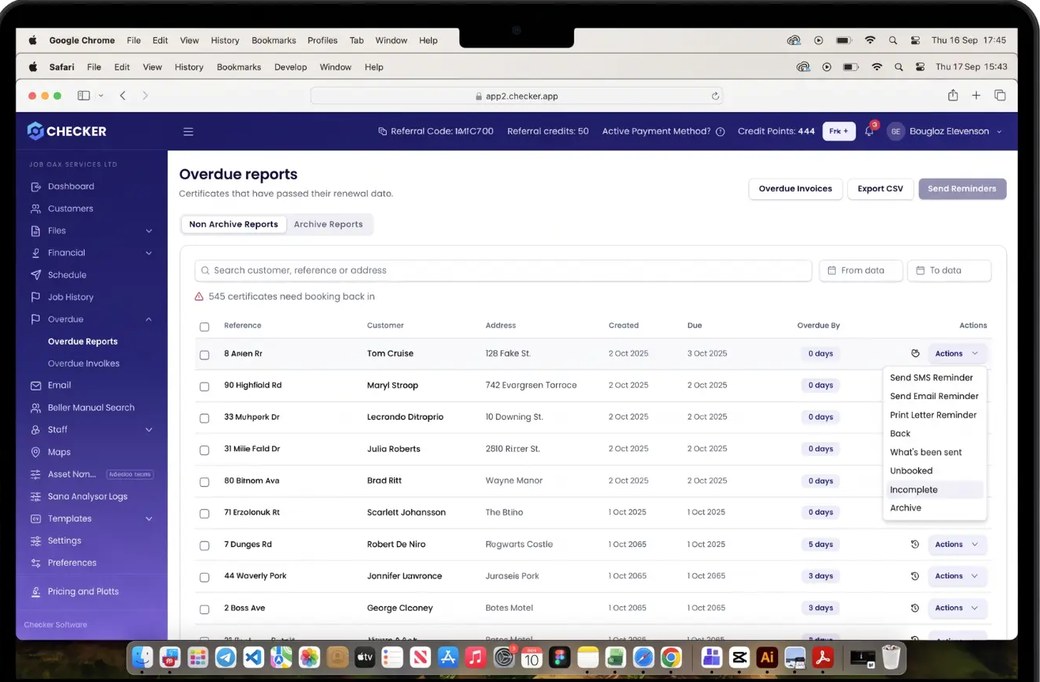
Every job you did last year is next year’s work, as long as somebody remembers it. Revisiting your own customer list is the cheapest, steadiest work you will ever get, and it costs you nothing to win. The only reason it gets lost is that nobody has the time to sit down and go through a year of files by hand.
The same goes for money. Not getting paid on time is what finishes most small businesses, not a lack of work. A quiet, automatic chaser at the right moment keeps the cash coming in without you having to be the bad guy on the phone.
Set it up once and let us handle it. It quietly rebooks work and collects money for you all year, without you writing a single reminder by hand.
FAQ
Yes. Every automation comes with sensible default wording, but you’re free to rewrite the subject line and body so it sounds like you.
Yes. The Annual Service Reminder is a real favourite with OFTEC-registered engineers for chasing yearly oil boiler services, and the default wording mentions safety and compliance.
No. Messages go out from your business email address with your branding and logo. To the customer, it looks like you’ve sat down and written it yourself.
Email replies come straight to your own email inbox, just like any other email. Text replies go to the mobile number you have in the app. Checker does not hold replies, but a copy of every message it sends for you is saved in the Email tab.
Yes. Each automation has its own on or off toggle, and the Invoice Chaser also lets you switch each of the three reminder steps on or off on their own.
Switch on Checker Automations from your dashboard. It takes a few minutes to set up and then runs in the background for good.
Open my.checker.app →Quick question? Mon to Fri, 9am to 5pm.
Chat on WhatsAppGet the app
Rather someone walked you through it? Book 15 minutes.