Getting started
These settings save and pre-populate every report, quote and invoice for you. Saving you hours in typing out over and over again. Get it right once and you never type your Gas Safe number again. This page walks you through the whole settings page from top to bottom, tells you what each box is for, and what to actually put in it.
Start your free trial →On the phone app, tap the menu, then Settings, then Edit. On the web app at my.checker.app it’s the cog in the top right. Both screens are the same, so anything you change on one shows on the other within seconds.
This block prints on the top of every certificate, quote and invoice you send. Write it exactly how you want it to appear on paper.
Put in: Enter your trading name, the one on the side of the van.
Put in: Enter your Companies House registration number, e.g. GB1234567. If you don’t have one enter NA.
Put in: Enter Line 1 street, line 2 area, line 3 town, line 4 postcode.
Put in: The number customers ring when they get your paperwork. Or want to book in a job.
Put in: Enter your email address your documents come from, e.g. support@checker.app.
Put in: Your Website address, if you have one e.g. https://checker.app.
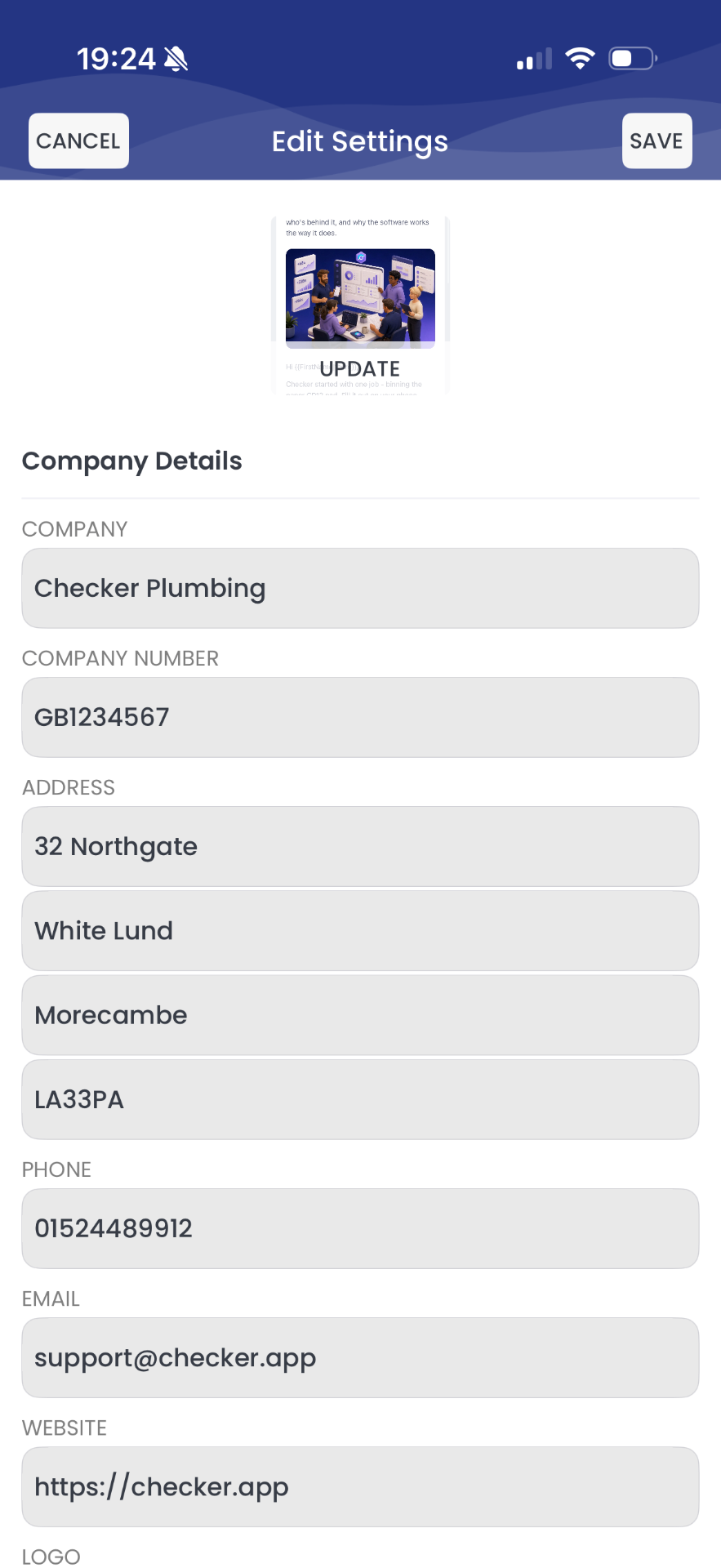
Settings › Company Details
PLACEHOLDER: Your logo and signature go on every document automatically. Do these two and your paperwork instantly stops looking like a photocopy from 2004.
Put in: Tap UPDATE, pick a square PNG or JPG from your phone.
Put in: The engineer’s name that signs off the report.
Put in: Enter your business’s Gas Safe registration number, e.g. 110098.
Put in: This the individual licence card number, e.g. 454545454.
Put in: Tap UPDATE and sign with your finger on the screen.
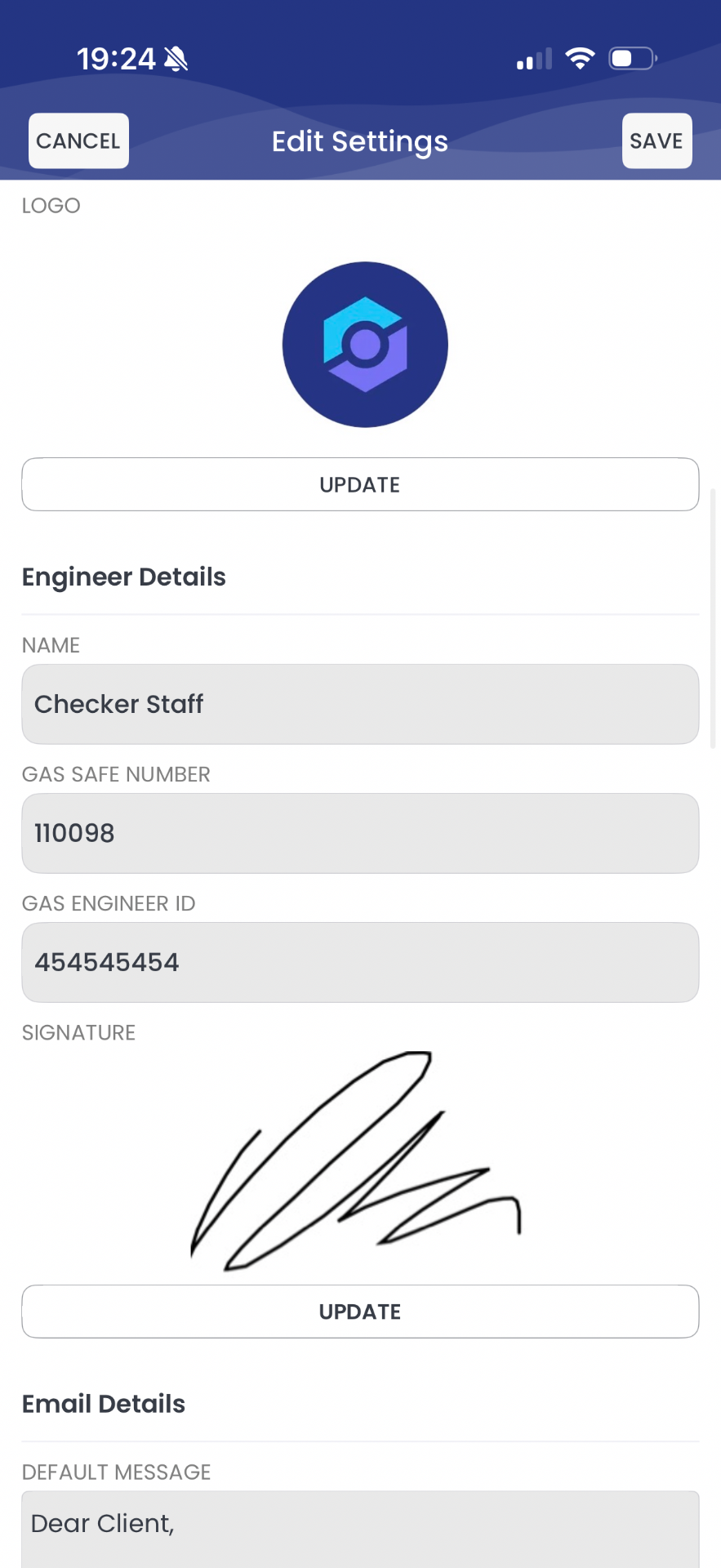
Settings › Logo and Engineer Details
This decides what the customer reads when your PDF lands, and how your documents are numbered. Numbering matters most if you’re moving over from other software.
Put in: This is a short greeting that goes on every email, what’s attached, and how to get hold of you.
Put in: Anyone who you want to get a visible copy, e.g. cc@checker.app.
Put in: Blind Carbon Copy – a hidden copy, usually to your own inbox or accountant.
Put in: Two or three letters in front of every certificate number, e.g. CA.
Put in: This is where your numbering carries on from, e.g. 00123.
Put in: The letters in front of every invoice number, e.g. CAINV.
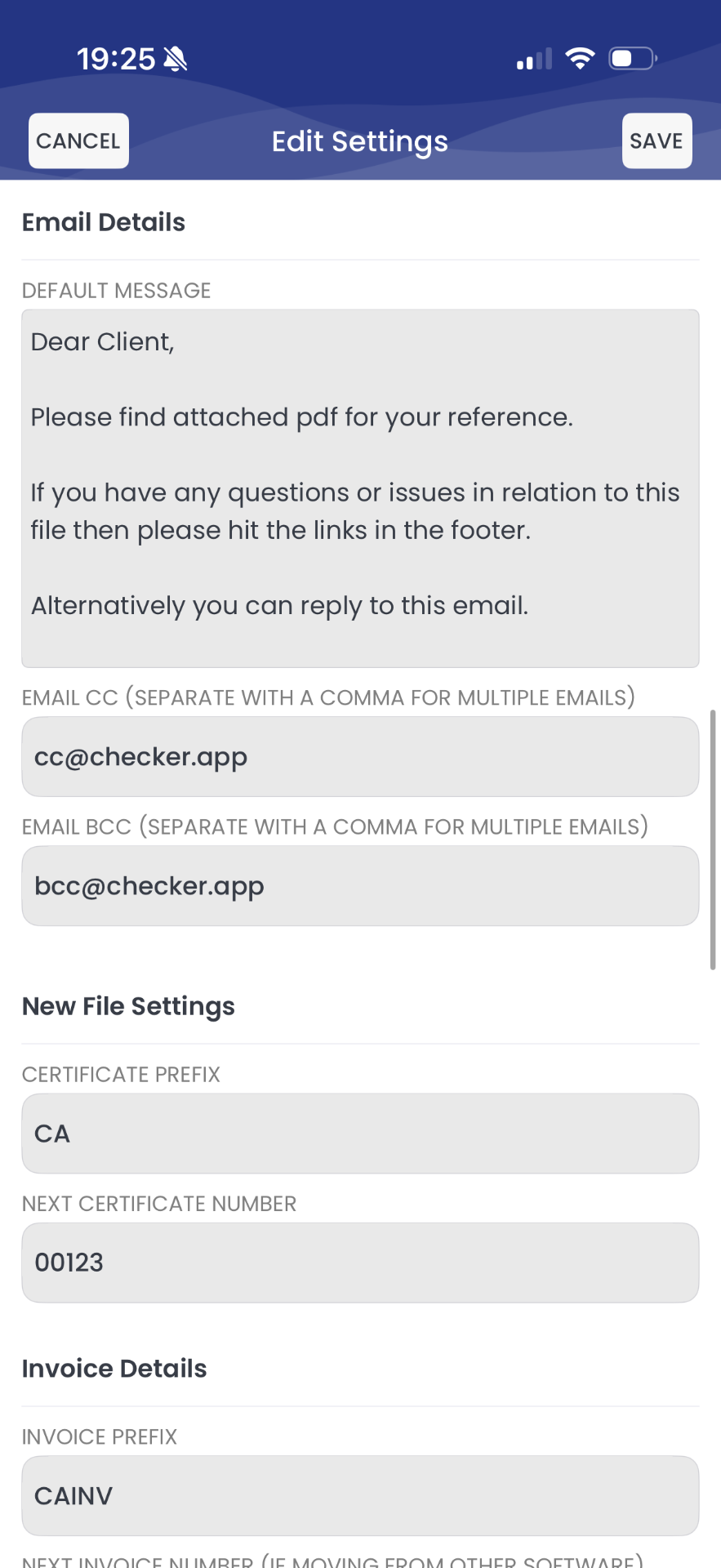
Settings › Email and File Settings
The money settings and the bit that pairs your flue gas analyser. Get the toggles right and Checker does your VAT maths for you.
Put in: Where invoice numbering picks up, e.g. 32523.
Put in: If you’re in Europe of America or the UK the invoicing still works… UK trades pick GBP.
Put in: Turn on if you’re VAT registered, off if you’re not.
Put in: Leave it on unless you like typing.
Put in: Switch it on if you want to be covered legally from bad payers, we have a catch all terms and conditions or you can paste your own.
Put in: On only if you’re registered under the Construction Industry Scheme.
Put in: Pick from the dropdown, e.g. 14 days.
Put in: Best practise here is account number, sort code, and “use your invoice number as the reference”.
Put in: Which flue gas analyser you use, e.g. Kane 458.
Put in: Add the analyser’s serial, e.g. 676666. Copy it off the back of the unit.
Put in: The calibration certificate reference and its expiry date.
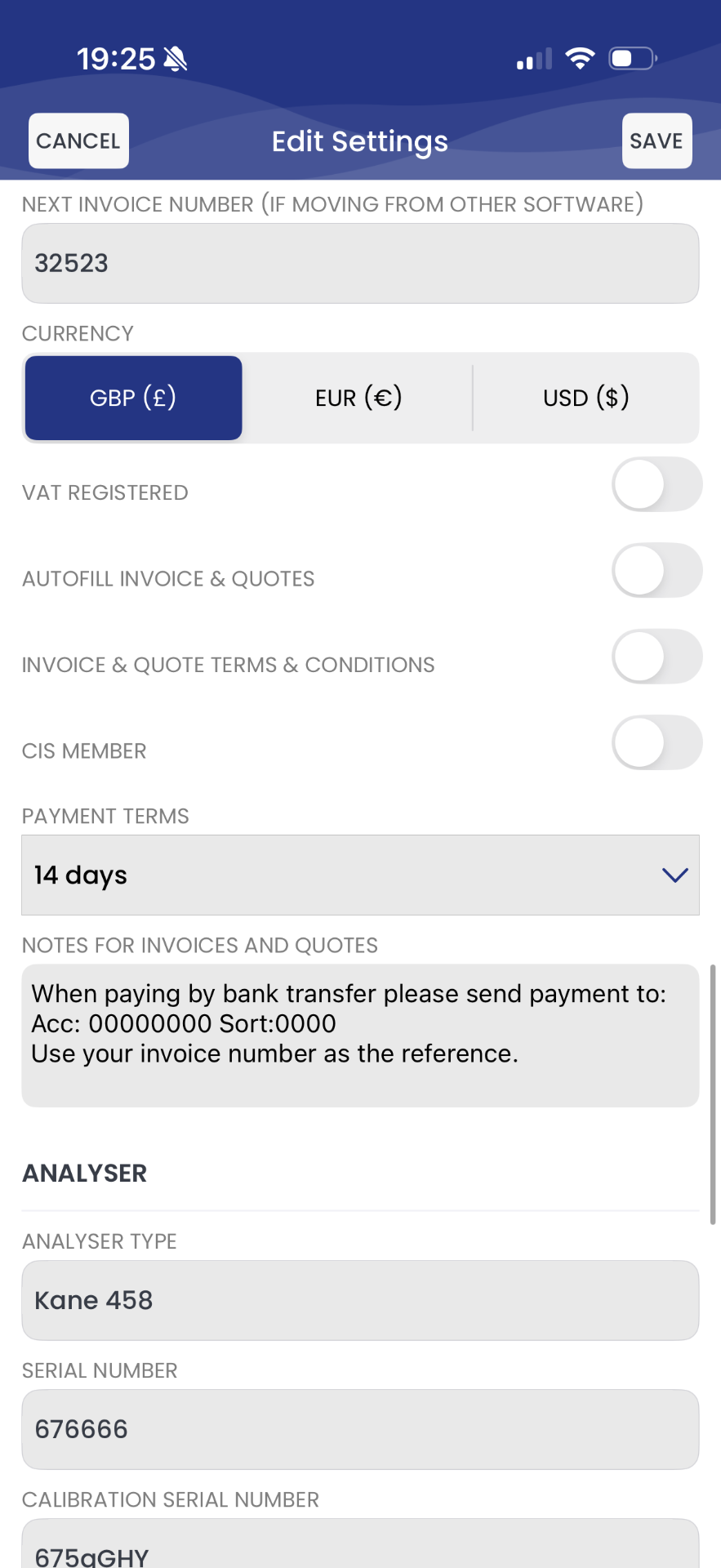
Settings › Invoice Details and Analyser
PLACEHOLDER: Only fill these in if you do oil or electrical work. Leave them empty otherwise, they won’t print on anything.
Put in: The name of the engineer that signs oil certificates, e.g. Checker Staff.
Put in: Your personal OFTEC technician number, e.g. 01010110.
Put in: The business OFTEC registration, e.g. 02020202.
Put in: The name printed on electrical certificates.
Put in: Your personal scheme number, e.g. NICEIC or NAPIT.
Put in: The business’s electrical scheme registration, e.g. 0000001.
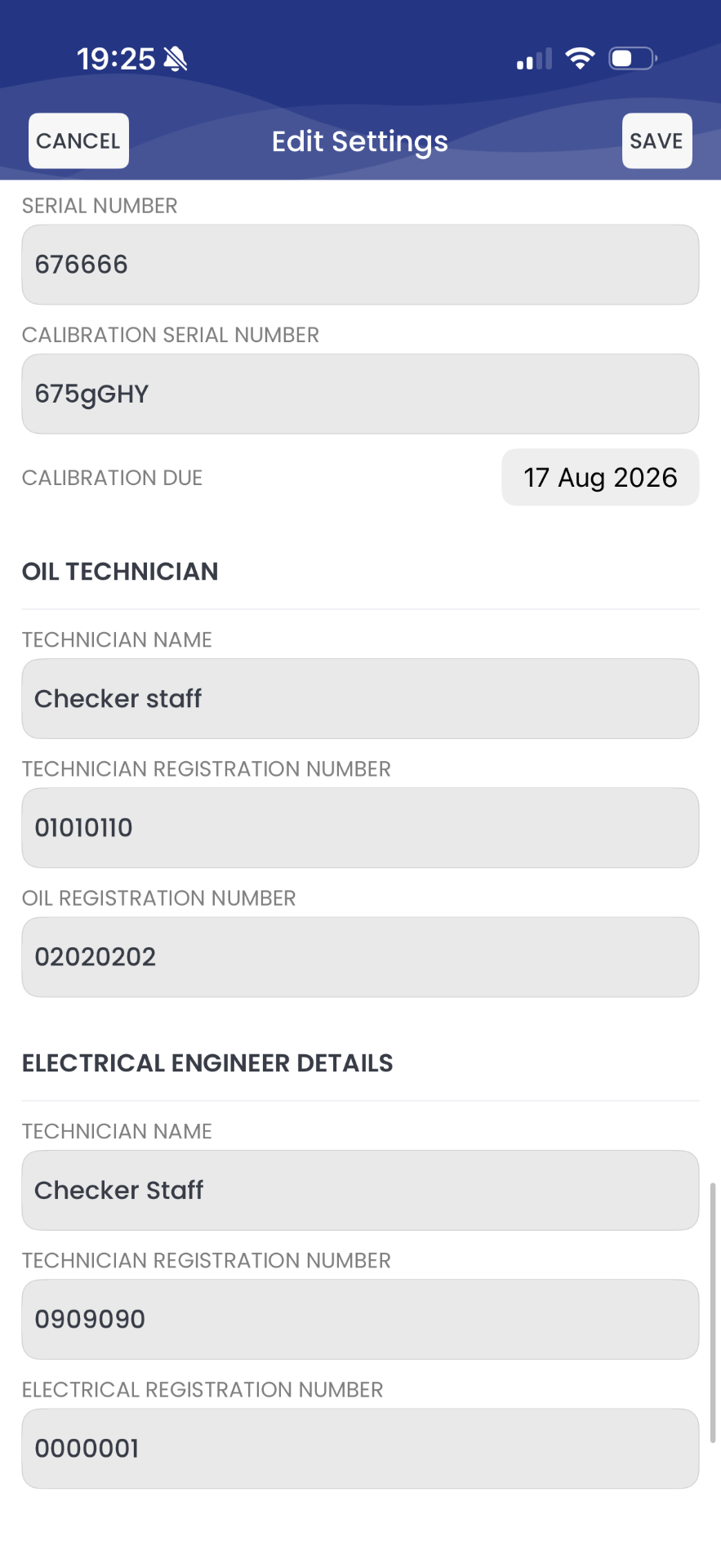
Settings › Oil and Electrical Details
PLACEHOLDER: No. Anything marked optional you can skip, and empty boxes simply don’t print.
No. Anything already issued stays exactly as it was. Changes only affect new documents.
Yes, same screen, same boxes. Change it in one place and it syncs to the other.
Yes. Company details are shared, engineer details are per person.
Close and reopen the document you’re looking at. It picks up settings when it’s created.
Fill settings in once and every certificate, quote and invoice after that fills itself in.
Start your free trial →